
SMS Help
With SiteMonitor you can receive SMS notificaitons when your website goes down. There are two providers that you can choose from:
(Please note that SiteMonitor needs to be connected to the Internet to send SMS notifications.)BudgetSMS
This feature uses the BudgetSMS SMS Gateway.
1. Signup to BudgetSMS
BugetSMS is very easy and straight forwared to use. First you need to create an account with BudgetSMS from here.
2. Buying SMS Credits
Once that your account has been created you can login to your account and buy SMS Credits
3. Enter SMS Configuration in SiteMonitor
You can fetch the details to enter in SiteMonitor so that it can connect to BudgetSMS by going to the Account Details
Section.
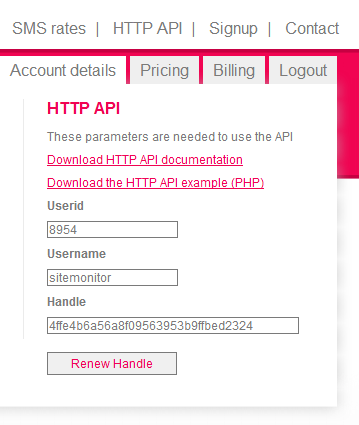
Here you need to take the Username, UserID and Handle. Enter the details in their respective textbox in SiteMonitor Enterprise
Configuration.
SiteMonitor Enterprise is now set up to start sending SMS notifications directly to your mobile phone using BudgetSMS.
Clickatell
1. Creating a Clickatell Account
To Set a Clickatell Account you need to login to the Clickatell Website selecting the Clickatell Central (API)
Product as shown in the image below:
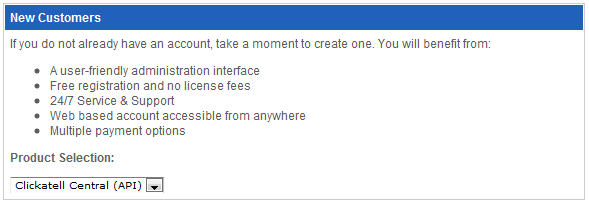
Once this has been done please enter your details:
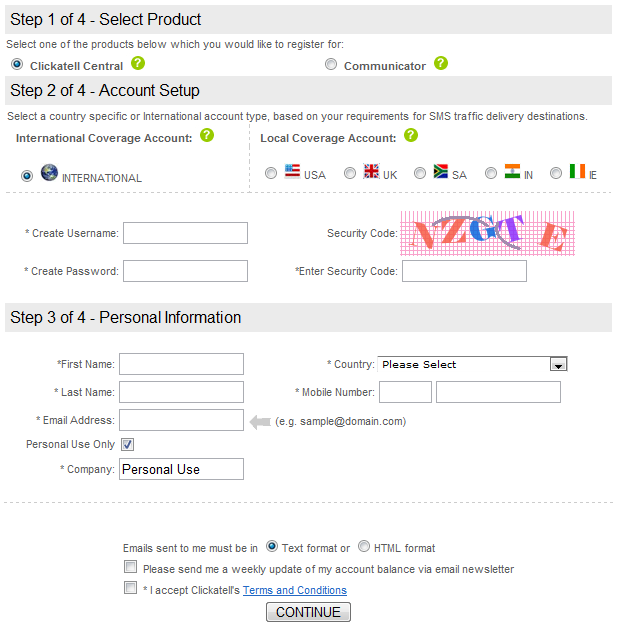
Make sure that you leave selected the Clikatell Central product and that you select the correct coverage.
Once all details have been entered click on the Continue button. You will be sent an email to verify your account.
You can then log in to your account.
2. Creating a Clickatell Connection
Now what you need is to set up a Connection
Goto the Manage My Products page from the top Menu and then select the new connection type which has to be HTTP.
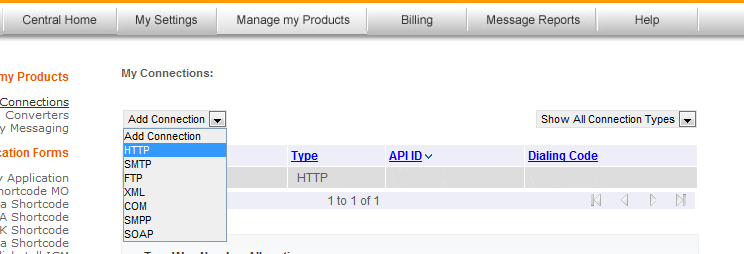
You will then need to enter a Connection Name. You can specify anything you want like SiteMonitor for example.
Then select the Dial Prefix for your country.
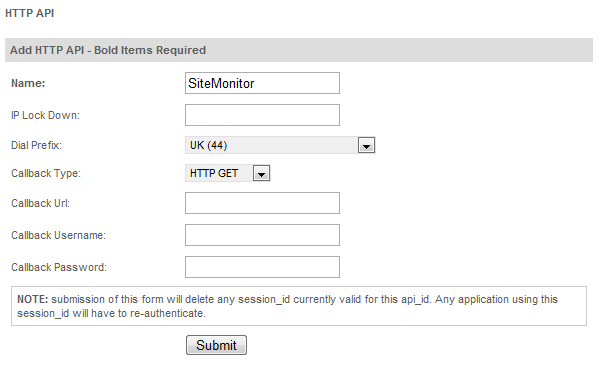
Click on Submit.
3. SiteMonitor SMS Configuration
Once all this has been done you should now configure SiteMonitor end to communicate with Clickatell.
Open the Preferences window from SiteMonitor and select the SMS tab.
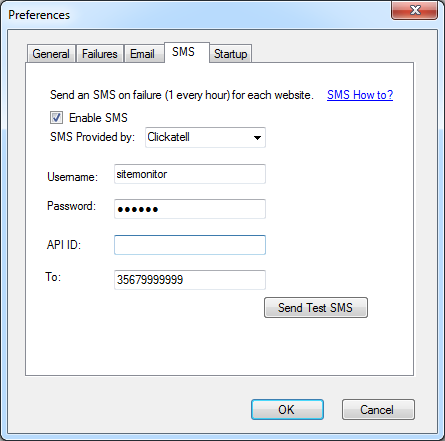
Enter the Username and Password that are used for your clickatel account.
The API ID refers to the API ID for the connection just created.
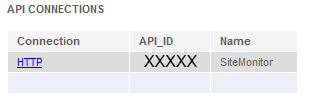
The To refers to the Mobile number where you want to receive the sms messages. You can also use the Country code.
Once this has been done you can send a test sms message by clicking on the Send Test SMS button.

